A system for infinite UI possibilities
2023

Our booking module's personalization capabilities were far beyond what a Michelin-starred restaurant needs to keep their experience consistent across every channel. So we decided to do something about it.
After benchmarking the best personalization tools online, the Engineering Manager, the Product Manager, and I decided on which aspects we would allow restaurants to personalize: fonts, visuals, and colors.
I decided to tackle this with a few guiding principles:
A new feature built for Michelin restaurants and groups with a strong brand identity across their locations.
A space for them to set the elements related to their brand, so that identity could be carried through into the booking module — and into many more user touchpoints down the line.
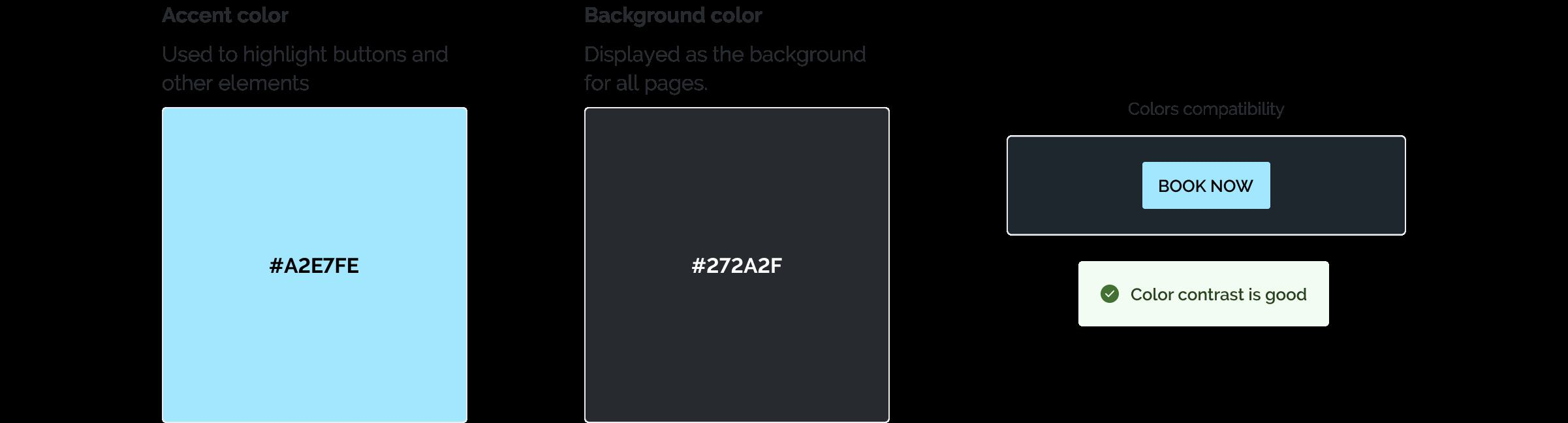
We let restaurants define these two colors to match their brand identity — while nudging them toward better accessibility along the way.
The real challenge was deciding how to derive the color of text and UI elements automatically, so that everything stayed accessible and WCAG-compliant, whatever accent/background combination a restaurant chose.
Every text and UI element ends up either black or white, depending on the color it sits on top of.
We used a WCAG contrast checker to determine, in real time, whether black or white gave better contrast against the chosen accent color:

I applied the same logic to background colors, to determine the color of labels, placeholders, legends, and other UI elements sitting on top of them:
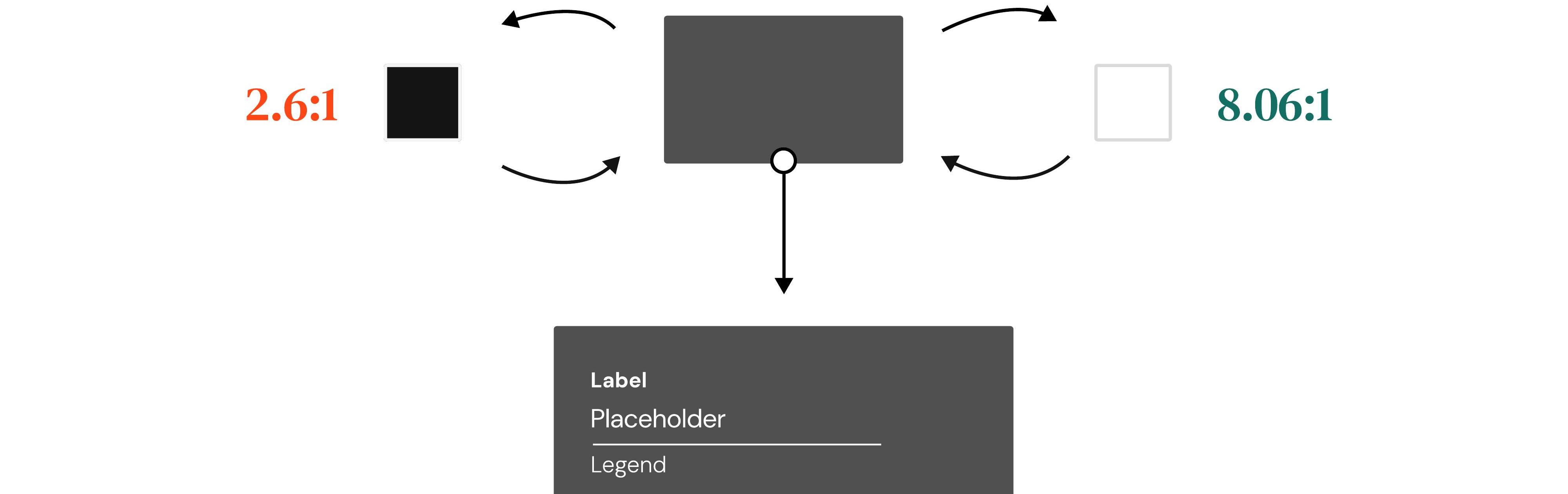
Here's how the same accent/background pairing plays out for a "Book now" button depending on whether the background is light or dark:
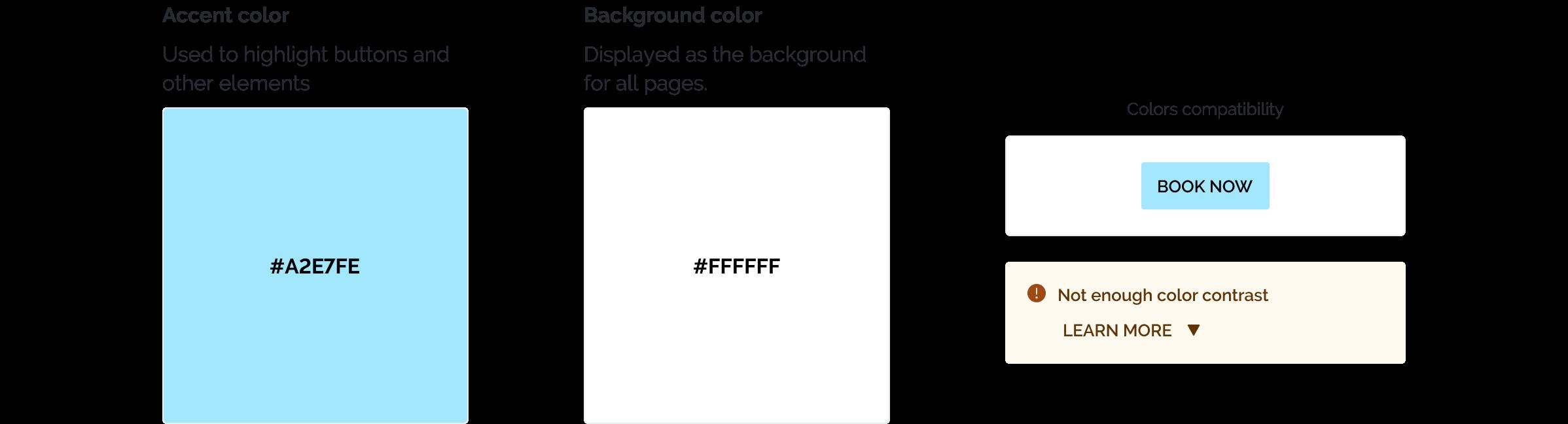
In any interface, colors aren't static — they shift as we interact with elements (hover, focus, press, disabled).
First approach: an overlay. My initial idea was to shift the perceived color on interaction using a semi-transparent overlay (e.g. a black overlay at 8–24% for hover, 16–48% for pressed, a white stroke at 40% for focus, and a fixed gray at 100% for disabled):

This approach didn't hold up for every case, so I went looking for a new one.
Second approach: Lightness manipulation. Since we were already calculating whether black or white had better contrast against a given color, we realized we could base the interaction states on that same calculation. Researching other design systems, I found a helpful model in IBM's Carbon design system.
The idea: convert the base color from HEX to HSL, and manipulate its Lightness value.

The principle rests on a threshold of perceived darkness — for simplicity, we placed it around 40L. In practice, though, we start from a simpler question: does white or black give higher contrast against this color? From there we can lighten or darken the base color as the user interacts with the element:

Applied to a full range of base colors, across default and hover states, buttons shift consistently up or down the Lightness scale — lighter base colors darken by 10L on hover, darker base colors lighten by 10L on hover:

With the principles settled, we moved on to implementation — starting with the Design Kit page itself inside TheFork Manager, where restaurants set their fonts, visuals, and colors. (The original screenshot of this page was not available/renders blank in the source deck.)
Alongside the flows and screens, we produced a guide documenting how each element should behave — tokenizing properties like background-color ± 10L so the logic could be reused consistently across components.
Using the accent color range:

Shown on both a dark and a light background, following the same accent/background logic:

With selected, hover, and default states, again on both backgrounds:

A consistent icon set adapted to the accent color, on both backgrounds: